
Manual: Microsoft Teams Integration
Run IdeaClouds inside your Microsoft Teams meetings, with a side panel for the facilitator and a shared workspace on the meeting stage for everyone in the call.
No more switching tabs. No more pasting session links into the chat. Your team collaborates in the same place they already are.
Overview
The IdeaClouds Microsoft Teams app brings the collaborative workspace right into your Teams meetings. Facilitators can run a full workshop from inside the call: ideation, evaluation, discussion, and decision. They push the live workspace onto the meeting stage for all participants to see, and continue using the side panel for moderation. The app supports regular sign-in and Microsoft Entra ID single sign-on for enterprise customers.
Before you start. IdeaClouds is published on the Microsoft Marketplace. In most organisations you can add it directly to a meeting. If your IT enforces a curated app catalogue and you don’t see IdeaClouds when you click "+ Apps", ask your Teams admin to approve it for your tenant.
What is the IdeaClouds Teams app?
It is a meeting-scoped Teams app with three contexts:
- Meeting side panel. Opens on the right side of a Teams meeting. The facilitator drives the session from here.
- Meeting details tab. Available before and after the call, so you can prepare or review results without joining the meeting.
- Meeting stage. Pushes the live workspace to the centre of everyone’s screen, so the whole call sees the same view.
The app does not appear in personal contexts, chats, or channels. It is meeting-only by design, to keep the experience focused.
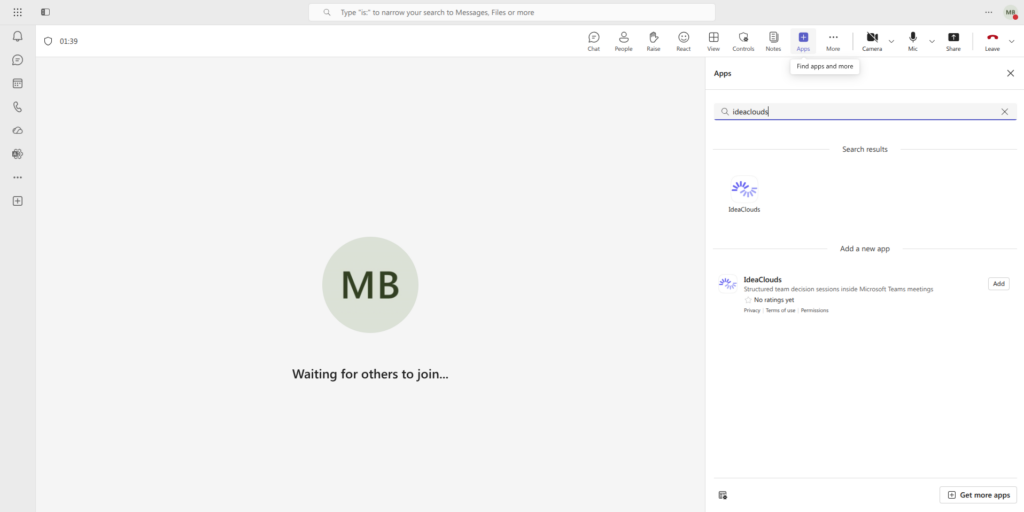
Adding IdeaClouds to a meeting
Any Teams meeting can host an IdeaClouds session. Here is the full setup, the first time:
- Open the meeting from your Teams calendar, or start a new one.
- In the meeting toolbar, click "+ Apps" and choose IdeaClouds.
- On the configuration screen, enter your organisation’s IdeaClouds URL (for example,
https://yourcompany.ideaclouds.net) and click Save. - The side panel opens with the IdeaClouds login. Sign in as you would in a browser.
- Open an existing session or start a new one. You are now running the workshop from inside Teams.
Your IdeaClouds URL is remembered for next time. After the first setup, joining a future meeting just means adding the tab and signing in.
If your organisation uses Microsoft Entra ID single sign-on, see the next section. For everyone else, your normal IdeaClouds username and password work as expected.
Signing in with single sign-on (SAML)
If your organisation signs in to IdeaClouds with Microsoft Entra ID (single sign-on), the flow inside Teams looks slightly different from a normal browser. Here is what to expect:
- Click the SSO Login button on the IdeaClouds login page inside Teams.
- A small Microsoft sign-in popup opens.
- Sign in normally. If you already have an active Microsoft session, this step is silent and the popup closes by itself.
- The IdeaClouds side panel reloads. You are now signed in.
This popup is only used inside Teams. Outside Teams, your normal browser sign-in keeps working unchanged.
Sharing your session with everyone in the meeting
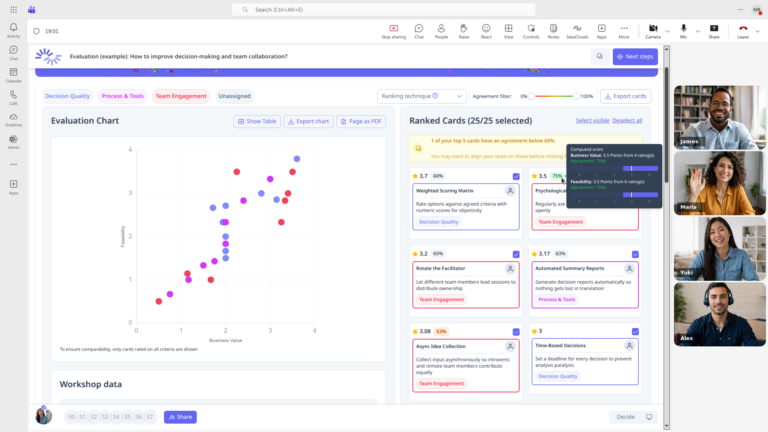
This is the headline feature. As the facilitator, you can push the live IdeaClouds workspace onto the meeting stage, so every participant in the call sees the same view in real time.
To share:
- Open a session as the facilitator.
- In the session footer, click the Share button. The Share dialog opens.
- In the Share dialog, click “Share to Microsoft Teams” (marked with the Microsoft icon). This button only appears when IdeaClouds is opened inside a Microsoft Teams meeting — if you’re in a regular browser tab, you won’t see it.
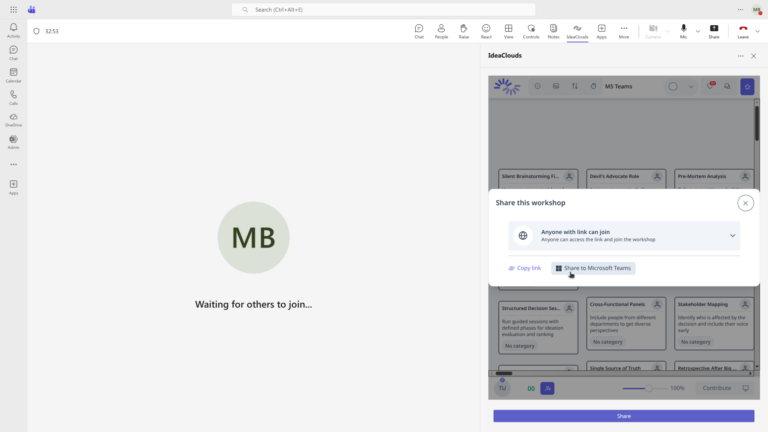
- Confirm in the prompt: “Show this session to all meeting participants?”
- The workspace appears on the Teams meeting stage. Everyone in the call sees it.
After sharing, your side panel automatically returns to the IdeaClouds dashboard. This is intentional. It avoids running two live connections from the same browser, which would otherwise compete with each other.
What anonymous and guest participants can see
There is one important limitation to know about, and it comes from Microsoft, not from IdeaClouds.
Anonymous Teams users cannot see or interact with an app on the meeting stage. This is documented in Microsoft’s Apps for Teams Meeting Stage reference. When you push the workspace to stage, in-tenant users, federated guests, and external users all see it. Anyone who joined the meeting via a link without signing in (anonymous guest) does not. They see the regular meeting view instead.
If you expect external participants in your workshop, the safest path is to invite them as Microsoft guests of your tenant, or ask them to sign in with a Microsoft account before joining. They will then see the shared workspace like everyone else.
Browser and platform support
The IdeaClouds Teams integration works in:
- The new Teams desktop client on Windows and macOS.
- The new Teams mobile clients for iOS and Android.
- Microsoft Edge and Google Chrome when running Teams in a web browser.
It does not support Firefox, Safari, Linux native clients, virtual desktop infrastructure (VDI) setups, or live events. These are Teams platform constraints.
If your participants use Safari or Firefox inside Teams, they may also see the IdeaClouds login screen each time they reopen the side panel. This is third-party cookie partitioning at work, and it is a browser behaviour we cannot bypass from inside the iframe.
Practical tips for facilitators
- All participants are in your tenant or signed-in guests. Use Share-to-Stage freely. Everyone sees the workspace.
- Some participants are anonymous (joined via link without sign-in). Either ask them to sign in to Teams before the workshop, or share a regular IdeaClouds browser link in the chat as a fallback.
- Your Teams admin has not approved the app for your tenant yet. Run IdeaClouds in a regular browser tab and share the session link in the meeting chat. The Teams integration is a productivity boost, not a requirement. In parallel, ask your admin to approve IdeaClouds from the Microsoft Marketplace.
- You want to prepare the session before the call. Open the meeting details tab in the Teams calendar entry. The IdeaClouds tab loads without joining the call, so you can set up the session in advance.
Planning a workshop with your team?
Running brainstorming and decision-making sessions inside Microsoft Teams removes one friction point: no one has to leave the meeting to participate. Facilitators run the session from the side panel. The team sees the live workspace on stage. Results stay in IdeaClouds for after-the-meeting analysis.
Already using IdeaClouds? Add the app to your next meeting. Two minutes, once.
Not run a session in a while? We’ll get you set up again: