
Tutorial: Create Your Own Multi-Criteria Evaluation Techniques
Design custom evaluation frameworks that match your team’s unique decision-making needs
Overview
The Multi-Criteria Evaluation Editor allows you to design custom evaluation frameworks tailored to your team’s specific decision-making needs. Instead of being limited to predefined evaluation methods, you can now create techniques that perfectly match your organization’s criteria and decision processes.
This powerful feature enables you to:
- Define custom evaluation criteria that reflect your unique requirements
- Choose an appropriate scale for all criteria
- Create reusable evaluation templates for consistent decision-making
- Adapt evaluation methods to different contexts (vendor selection, feature prioritization, risk assessment, etc.)
Whether you’re evaluating suppliers, prioritizing projects, or assessing risks, custom multi-criteria techniques help your team make more transparent and structured decisions.
Table of Contents
What Are Multi-Criteria Evaluation Techniques?
Multi-criteria evaluation techniques help teams make structured decisions when multiple factors need to be considered.
→ Learn more about multi-criteria decision-making methods
This tutorial focuses on how to create your own custom evaluation techniques using the evaluation technique editor of IdeaClouds.
Part 1: Creating Your Custom Technique
This section guides you through the process of designing and configuring your own multi-criteria evaluation technique. You’ll learn how to define criteria, choose appropriate scales, and save your technique for repeated use.
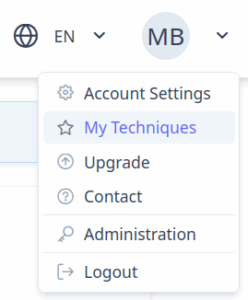
Step 1: Open "My Techniques" view
- Open the main menu on the top bar.
- Click on the menu item “My Techniques”
Step 2: Start the Editor
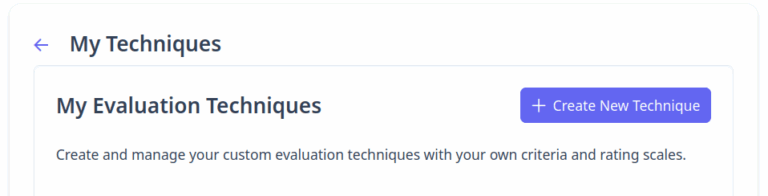
- In the panel “My Evaluation Techniques”, click on “Create New Technique” to open the editor.
Step 3: Label the new technique
- Enter a name for your technique. The name will be displayed on the list of available techniques and on the reports.
- A description can be entered as well, so that while configuring an IdeaClouds workshop, you can simply recall what the technique was about.

Step 4: Define evaluation criteria
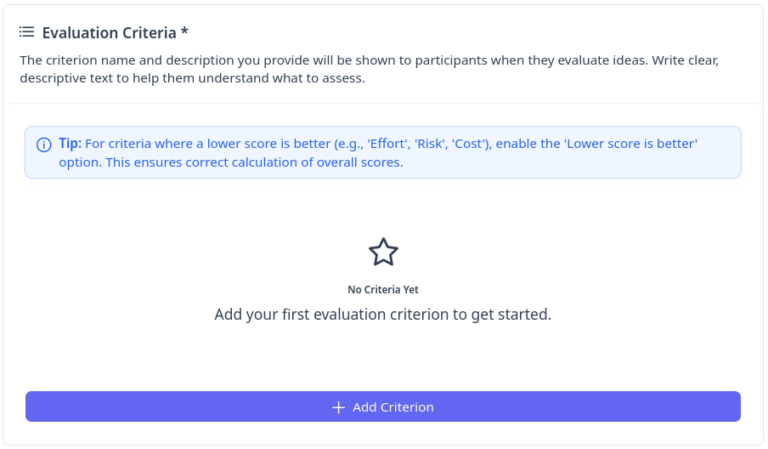
- If you scroll down, you can see the “Evaluation Criteria” panel. There you can add and define criteria by clicking on the “Add Criterion” button.
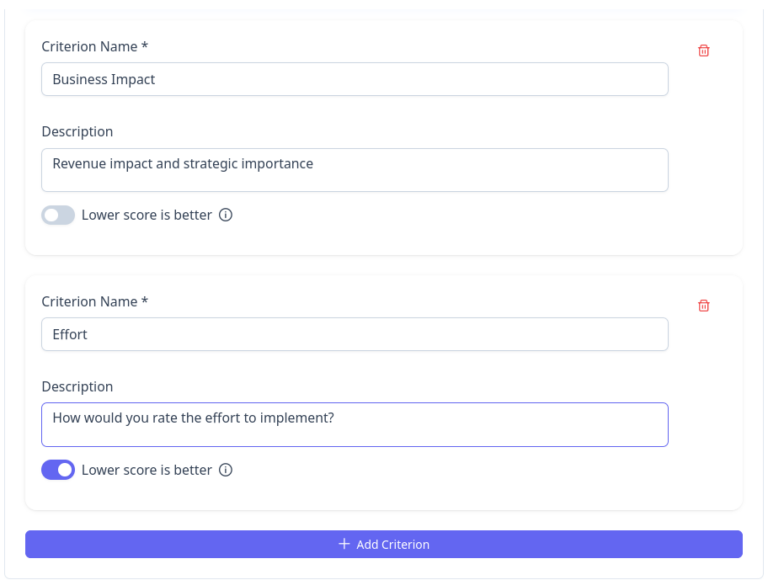
- Add your criteria. We recommend adding a description as well, as participants can view it if needed on the evaluation interface in IdeaClouds.
- Set “Lower score is better” when lower values for a criterion (e.g., Effort, Risk, Complexity) indicate a better proposal. IdeaClouds will use that to compute correct aggregated scores.
- Choose desired “Rating type”: Numerical scores enable fast evaluations and help teams and IdeaClouds quickly assess alignment (e.g., agreement levels). Text comments provide richer feedback but take more time to write and to analyze.
- For numerical scores define a common scale that applies to all criteria. For scales with up to 6 points, you can enter scale labels (or let IdeaClouds generate them for you).
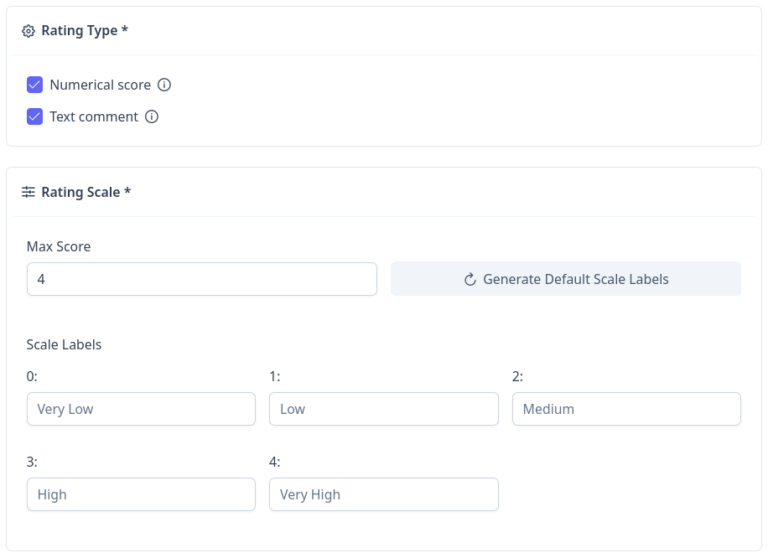

- Click on the “Create” button and you are ready to go!
- Your newly created technique will appear on the panel
Part 2: Using Your Custom Technique in Workshops
Once you’ve created your evaluation technique, it’s time to put it into action. This section shows you how to set up workshops, guide your team through the evaluation process, and view the results to make informed decisions.
Step 1: Configure Workshop with New Technique
- When you are creating your workshop, open the list of evaluation techniques and scroll down. You will see your newly created evaluation technique. You can put the mouse cursor on the name to see the description you entered if needed.
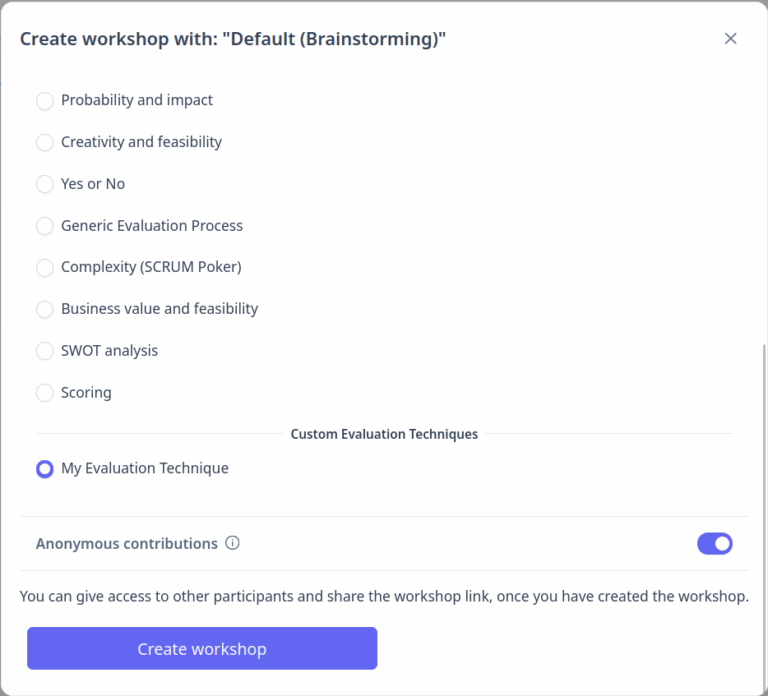
Step 2: Launch Evaluation Phase for all Participants
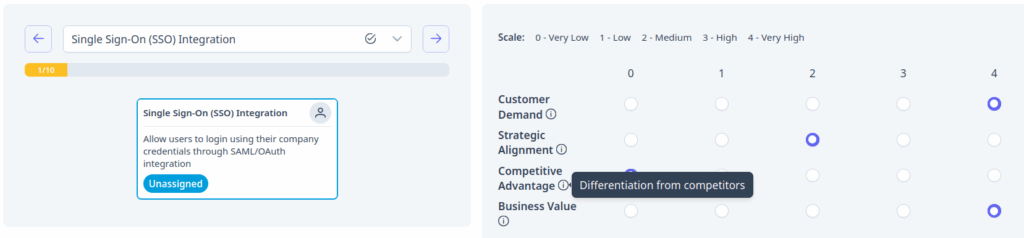
- Once you and the participants have added all items to evaluate in the generation workspace, start the evaluation phase by clicking “Start Evaluation” as facilitator. The evaluation panel will appear showing the criteria you defined.
- As shown in the screenshot on the right, participants can view the description for each criterion if they need additional clarification.
Step 3: View Results
- Once you close the evaluation phase, the results for evaluations with more than 2 criteria are displayed in a table.
- Participants can sort the results by any criterion.
- Color coding behind the ratings shows whether each rating falls in the lower (red), middle (orange), or upper (green) range of the scale.


- Beyond the table view, charts are also available for all rating-based evaluation techniques.